

Where a capture goes
A capture is always in exactly one of three places, and nothing disappears unless you chose it.
| Place | What it is for | How it gets there | How long it stays |
|---|---|---|---|
| The corner (bottom right of the screen) | Captures you have not decided about yet, annotations still editable. | ⌘⏎ leaves a capture there without copying. ⇧⏎ copies it, leaves it there and starts the next capture. | Until you copy, discard or keep it. Nothing in it goes away by itself. It holds 30 and is still there after you quit (you can turn that off). |
| Kept for Later (in the notch, ⌥⇧S) | Captures you chose to keep, to finish another day. | ⌥⏎ keeps one, ⇧⌥⏎ keeps every card in the corner. | Never expires and has no limit. It stays until you finish it or remove it. |
| Recent Captures (in the notch, ⌥⇧H) | The safety net: what you copied, discarded or cleared waits here, so a slip of a key never costs a screenshot. | ⏎ copies a capture into it. esc discards a capture into it. Clear all, finishing a Kept for Later card, and closing a pin you copied with ⌘C put captures there too. | 7 days and 50 captures by default (1, 7 or 30 days; 10, 25, 50 or 100 captures). Goes by itself when either limit is reached. |
The five keys at the end of a capture:
| Key | What happens | Goes to |
|---|---|---|
| ⏎ (or ⌘C) | Copies, closes. The “Copied” pill confirms. | Recent Captures |
| ⇧⏎ | Copies, leaves a card in the corner, starts the next capture of the same kind. | The corner (and the clipboard) |
| ⌘⏎ | Leaves it in the corner. Nothing is copied. | The corner |
| ⌥⏎ | Keeps it for later. Nothing is copied. | Kept for Later |
| esc | Discards it. Nothing is copied, and you can still get it back. | Recent Captures |
With “Keep recent captures” turned off in Settings, nothing goes to Recent Captures: a discard or a copy leaves no entry. Two more ways out: ⌘S saves a file (a saved capture is not in any list), and Pin to Screen floats it (close the pin and the capture goes back where it came from; a new capture goes to the corner). The island’s “…” menu has every one of these, with its key. A hint line under the island shows the keys that matter right now.
Why three places: the corner is for “I will deal with this in a minute”, Kept for Later is for “this is mine, do not let it go”, and Recent Captures is for “I did not mean to lose that”. Each has its own rules, so none of them has to guess what you wanted.
Capture
Area
Drag a rectangle over any part of your screen. Frostshot freezes the screen the instant you press the shortcut, so you capture exactly what you saw.
- Press ⌥⇧1, or choose Capture Area in the Frostshot menu in the menu bar.
- Drag over what matters. Pull any of the eight handles to adjust an edge, or drag inside the selection to move it.
- A glass island appears under the selection with the tools, the color and Copy. Press ⏎ to copy and finish, or keep marking it up (see Quick edit).
- Tips: the arrow keys nudge the selection by one point, ⇧ for ten. Hold Space and drag to move it. esc discards the capture (see below); with nothing selected yet it just closes. With more than one display, the overlay appears on all of them and each selection crops the exact pixels of its own screen.
Window
Point at a window and click. Frostshot captures that window alone, with its rounded corners and any transparency, and nothing from the desktop behind it. Press ⌥⇧2, or choose Capture Window. Move the pointer: the window under it is highlighted. Click to capture; the island appears and everything works as for an area. The window comes without its shadow. esc closes.
Fullscreen
Captures the whole display under your cursor and goes straight to quick edit. Press ⌥⇧3, or choose Capture Fullscreen. With several displays, only the one under the pointer is captured. Press ⏎ to copy it, or mark it up first.
Repeat last area
Captures the same rectangle again, for before-and-after shots. Capture an area once; whenever you want that rectangle again, press ⌥⇧R. It is captured at once and opens in quick edit, with nothing to drag. Before you have captured an area, it opens a normal Area capture.
Copy Text
Drag over some text and the words land on your clipboard. It is a screenshot of text, not of pixels. Text capture never makes an image.
| Action | Default | What it copies |
|---|---|---|
| Copy Text | ⌥⇧⌘T | The text as it is laid out on screen: line breaks and indentation kept. |
| Copy Text (Plain) | ⌥⇧T | Just the text: each paragraph on one line, no indentation, a blank line between paragraphs. |
- Press the shortcut (both are in the Frostshot menu too).
- Drag over the text. A small “Text mode” chip, with the shortcut, reminds you what you are doing.
- Let go. The text is copied and a small glass pill next to the selection says “Text copied” (or “Plain text copied”).
- No text in the selection: the pill says “No text found” and your clipboard stays as it was. If it cannot be read: “Couldn’t read the text”.
Tips: code comes through as you see it (recognition reads again without language correction when the text looks like code, and rebuilds the indentation). Recognition reads English and Spanish, and runs on your Mac. Already in quick edit with a selection? ⌘T, or Copy Text in the island’s “…” menu, copies its text, formatted. esc before you let go closes text mode. A new capture cancels a recognition still running.
Open from Clipboard, and Open Advanced Editor
Open from Clipboard (Frostshot menu) opens an image you copied elsewhere in the Advanced editor. Open Advanced Editor (⌥⇧E) opens your last capture there; it is dimmed in the menu until you have made one. The last capture is the last one you copied, saved, pinned or opened in the editor; one you only left in the corner, kept for later or discarded does not count.
Quick edit
Right after you select an area, a window or the screen, you can mark it up in place. Everything lives on a glass island under the selection.
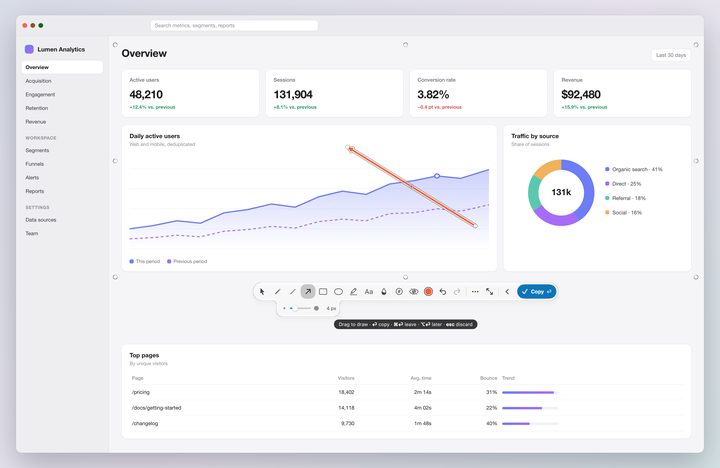
The island
At rest it shows the active tool, the color, the size in pixels and Copy. Point at it, press Tab or click a tool and it opens. Its controls, in the order the keyboard walks them:
| Control | What it does |
|---|---|
| Move (the first slot) | No tool armed: select and move marks. |
| Pen, Line, Arrow, Rectangle, Ellipse, Highlighter, Text, Blur, Counter | The nine quick tools. |
| Redact Sensitive Data (the eye) | Turns automatic redaction on or off for this capture. |
| Color | A click opens a ring of twelve colors (Orange, Red, Pink, Purple, Blue, Cyan, Green, Yellow, White, Light gray, Dark gray, Black) and a thirteenth bead, More colors, that opens the full picker. |
| Undo, Redo | Appear when there is something to undo or redo. |
| More (…) | Copy Text, Pin to Screen, Save, Keep & next, Leave in Corner, Keep for Later, Advanced and, last, Keyboard Shortcuts, each with its key. |
| Advanced | Opens the capture in the Advanced editor. |
| Collapse (‹) | Folds the island back to a capsule. Open or folded, it stays as you left it. |
| Copy | Copies and closes. |
Under the armed tool a lobe holds one slider: Blur strength, Spotlight dim, Stroke width (pen, line, arrow, rectangle, ellipse, highlighter), Counter size, Text size or Magnifier zoom. It changes the selected mark live.
The “…” menu lists Copy Text, Pin to Screen, Save, Keep & next, Leave in Corner, Keep for Later, Advanced and Keyboard Shortcuts.
The hint line under the island reads: “⏎ copy · ⌘⏎ corner · ⌥⏎ later · esc discard · ? shortcuts”. While you drag it reads “Drag to draw · …”, and when you point inside the selection, “Drag inside to move · …”.
The quick island has no one-letter tool keys; those belong to the Advanced editor. Click a tool, or Tab to it.
Color ring and picker
Click the color bead and a ring of twelve colors blooms out of it. The last bead, More colors, opens the full picker: a wheel, a brightness bar, a hex field and an opacity slider, with Stroke and Fill tabs, your favorites and recent colors, and eyedroppers that sample a color from your capture (Pick from Capture) or from anywhere on screen (Pick from Screen). In the Advanced editor ⇧⌘C opens the full picker; in quick edit it is the last bead.
Finish
The keys are in the table “Where a capture goes” above, and in Keyboard shortcuts below. Also: ⌘S saves to your save folder. ⌘T copies the selection’s text.
Drive the island from the keyboard
Tab goes into the island (the island opens; ⇧Tab goes back from the last control). ← → ↑ ↓ move between controls (on the slider they move the knob; around the color ring they wrap). Space presses the control in focus, ⏎ does too. esc takes the keyboard off the island. Past the last control, Tab leaves the island, so it never traps the keyboard.
Good to know
- Every finished edit puts the picture on your clipboard, so it is already copied by the time you press ⏎.
- Press the capture shortcut again once you have a selection and it does what ⇧⏎ does (only for the same kind of capture, and a held key does not chain).
- esc closes things in order: first the full picker, then the ring, then the “…” menu, then it ends a text being typed, then it takes the keyboard off the island. Only the next esc discards the capture.
- Double-click a text to change its words. ⏎ or a click outside finishes it, esc cancels it.
- Drag the hollow handle in the middle of a selected arrow to curve it.
- ⌫ deletes the selected mark.
- If automatic redaction is still working when you press a key that sends the picture away, the key waits for it and then runs. Nothing leaves unblurred.
Quick edit of a card
A card from the corner or from Kept for Later can be opened in quick edit again, over a fresh freeze of the display under the pointer, annotations back. The keys do what they do for a new capture, with these differences.
From the corner (click a card, ⏎ on it with the keyboard, or Quick Edit on its pill):
| Key | What happens |
|---|---|
| ⏎ | Copies it. The card leaves the corner and goes to Recent Captures. |
| ⇧⏎ | Copies it, keeps the card in the corner with your edits and starts the next capture. |
| ⌘⏎ | Keeps the card in the corner with your new marks. Nothing is copied. |
| ⌥⏎ | Moves the card to Kept for Later, with your edits. |
| esc | Takes the card out of the corner to Recent Captures, with the edits you made. Undo in the notice, or ⌘Z after ⌥⇧L, brings it back. |
From Kept for Later (click the card, ⏎ on it, or Edit on its pill). The hint line reads “⏎ copy · ⌥⏎ later · esc back to Kept for Later · ? shortcuts”:
| Key | What happens |
|---|---|
| ⏎ | Copies it. With “Remove a capture once you copy or save it” on (the default) it is done and goes to Recent Captures; with it off it stays in Kept for Later. |
| ⇧⏎ | Only copies. It does not start another capture. |
| ⌥⏎ or ⌘⏎ | Puts it back in Kept for Later with your edits. A Kept for Later card never goes to the corner from here. |
| esc | Back to Kept for Later with what you did so far. If you drew anything, the card gets the pencil. |
If you open a card in the Advanced editor instead: the corner card says “Editing” while the window is open. ⌥⏎ in the editor keeps it for later and closes the window; closing it any other way sends the card to Recent Captures with the editor’s marks. A Kept for Later card opened there stays in Kept for Later when you close it (with the pencil if you changed it), and counts as done if you copy or save from it.
Quick edit or Advanced editor?
| Quick edit | Advanced editor | |
|---|---|---|
| Where | On the frozen screen, under your selection. | A window of its own. |
| Opens | Right after you select. | Advanced on the island, ⌥⇧E, Edit on a card, ⌥-click in the strips, Open from Clipboard. |
| Tools | Pen, line, arrow, rectangle, ellipse, highlighter, text, blur, counter. | The nine plus select, crop, spotlight and magnifier; shape styles; ⌘K; frames, backgrounds and Looks; Export. |
| Tool keys | None; click or Tab. | One letter per tool. |
| Ends with | ⏎ ⇧⏎ ⌘⏎ ⌥⏎ esc. | Copy, Save, Export…, Pin, ⌥⏎ Keep for Later, ⌘W. |
| Clipboard | Holds the picture after every finished edit. | Holds the picture 250 ms after you pause editing. |
The corner
The corner (bottom right) holds the captures you have not decided about: the ones you left with ⌘⏎ and the ones from a ⇧⏎ run. Annotations stay editable. Copy a card later, edit it again, pin it, keep it for later or drag it into Finder or a chat to drop the file. Use “the corner”.
- Leave it alone for a few seconds and it folds into a small tile with a count. Point at the tile, click it or press ⌥⇧L and it opens sideways into a row of cards, the newest by the corner.
- Every card has an age tag (see Age tags), and its size when you point at it.
- Point at a card for Quick Edit, Edit in Advanced, Copy, Combine…, Pin and Save, and a × that discards it to Recent Captures. Click the picture to quick-edit it.
- The 3-second preview: a new card arrives big, 1.15× over the stack, and holds for 3 seconds before it drops into its place. Point at it or hold the keyboard on it and it waits; it resumes 0.6 s after you leave. With Reduce Motion it cross-fades.
- With two or more captures a Clear all button shows at the left of the row; ⌘⌫ does the same. Every card goes in one puff, with no question asked: a “Captures cleared” notice with Undo shows, ⌘Z brings them back, and whatever left waits in Recent Captures. Clear Captures does it from anywhere (menu, and a global shortcut with no keys until you record some).
- It holds 30. The 31st card sends the oldest to Kept for Later, not away, and a notice says so once: “You have 30 captures. The oldest moved to Kept for Later.” A capture open in an editor is never sent out.
- It survives quitting Frostshot. Turn that off with “Keep corner captures after quitting” in Settings › Captures.
- Copy, Pin and Save take a card off the corner, and so does dragging it out. A two-finger swipe down on a card discards it to Recent Captures.
- It never covers the Dock, never takes the keyboard by itself and never shows up in a capture or a recording.
- Corner in the Frostshot menu shows the number waiting and is dimmed when there are none.
- ⌥⇧L with nothing in the corner says “No captures”.
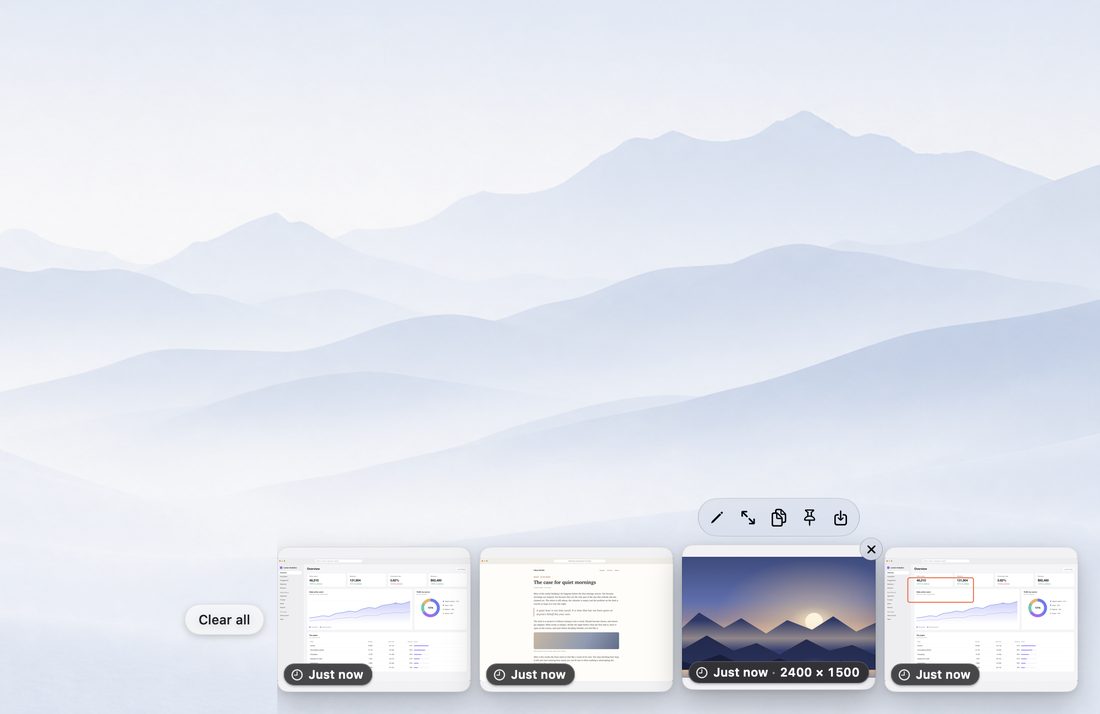
The corner with the keyboard
⌥⇧L opens the row on the screen under the pointer and gives it the keyboard, without pulling the app you work in to the back. Press ⌥⇧L again to hand it back. A line of keys shows above the row: “← → choose · ⏎ quick edit · ⌥⏎ later · ⇧⌥⏎ all to later · ⌫ discard”. The keyboard starts on the newest card. The keys are in the corner table in Keyboard shortcuts below. Copy, Save and Pin close the row and give the keyboard back to your app, so your next ⌘V goes there. Esc, a click elsewhere, starting a capture or the last card leaving also end the visit. Full Keyboard Access and VoiceOver can also reach the row with Tab.
Kept for Later
Captures you chose to keep. They live in the notch strip and never expire.
- Keep a capture with ⌥⏎ (in quick edit, on a corner card, in the Advanced editor) or the Keep for Later button on the Copied pill or the Saved card. ⇧⌥⏎ in the corner, or Keep All for Later in the menu, keeps every card in the corner at once (one ⌘Z brings them all back). Keep for Later in the menu keeps the card the keyboard is on, else the newest.
- Nothing is copied when you keep one. Annotations stay editable.
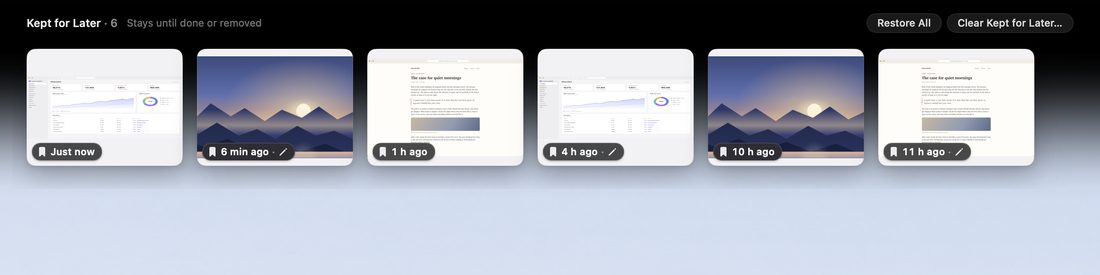
- Open the strip with ⌥⇧S, or Kept for Later… in the Frostshot menu (the menu shows the count). A black field grows out of the notch across the top of the screen, with your captures on it, the last one kept on the left. On a Mac without a notch it grows from the middle of the top edge. The header reads “Kept for Later · 6” with the note “Stays until done or removed”.
- Click a card to quick-edit it. ⌘-click copies it, ⌥-click opens it in the Advanced editor. Point at a card for its pill: Edit, Copy and Corner (send it to the corner), and a “…” with Combine…, Copy and Keep for Later, Edit in Advanced and Remove. The × on a card, or ⌫, sends it to Recent Captures; ⌘Z brings the last one back.
- Never expires, no limit. Past 100 captures a notice says once that nothing in it goes away by itself.
- Unfinished edits are kept: if you close a card halfway through an edit, it goes back to Kept for Later with your edit, and its age tag wears a small pencil (the pencil hides while you point at the card, where the Edit button says the same).
- Done on copy or save: copy or save a kept capture and it counts as done. It moves to Recent Captures, and a glass notice reads “Done · moved to Recent Captures” with Undo. A checkbox in Settings › Captures, “Remove a capture once you copy or save it”, turns this off; then it stays in Kept for Later until you remove it. ⌥⌘C (Copy and Keep for Later) copies a card and keeps it there whatever the checkbox says.
- Restore All in the header sends every card that fits to the corner (Restore Newest n when the corner has room for fewer). “Clear Kept for Later…” deletes everything after asking; it is also in the menu and in Settings, where “Space used: 412 MB” shows how much it takes.
- Empty, it says “Nothing kept for later” and “Keep a capture with ⌥⏎ and it waits here until you are done with it.”
Recent Captures
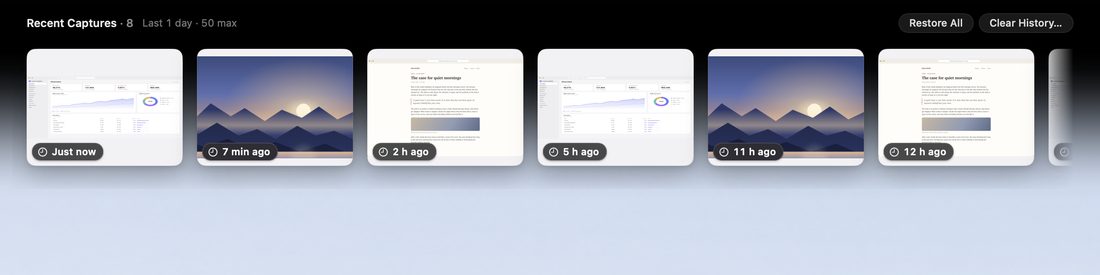
Whatever you copied, discarded or cleared waits here, so a slip of a key never costs you a screenshot. It opens in the same strip as Kept for Later.
- Press ⌥⇧H, or choose Recent Captures… in the Frostshot menu (it shows the count). You can change the key in Settings › Shortcuts.
- A black field grows out of the notch with your recent captures on it, the newest on the left. The header reads “Recent Captures · 12” with a note such as “Last 7 days · 50 max”.
- Click a capture to bring it back to the corner, annotations editable. ⌘-click copies it (it stays in Recent Captures). ⌥-click, ⌘E or ⌥⏎ opens it straight in the Advanced editor, and it stays in Recent Captures too. Point at a card for the same three buttons plus Combine…, and a × that deletes it for good.
- Restore All puts them all back, oldest first, so the newest lands by the corner (Restore Newest n when the corner has room for fewer). Clear History… deletes them all, after asking.
- What goes in: captures you copied with ⏎ or ⌘C (or Copy in the Advanced editor), discarded with esc or cleared; a pin you copied with ⌘C, once you close it; and what you finished or removed from Kept for Later. What does not: captures you saved to a file or dragged into another app, and text you copied with Copy Text.
- How long: 7 days and 50 captures by default; choose 1, 7 or 30 days, and 10, 25, 50 or 100 captures, in Settings › Captures. A capture leaves when the first limit is reached.
- Where: only on your Mac, never in any cloud. Turn it off with Keep recent captures in Settings and everything in it is deleted (after asking).
- With the history off the strip says “Recent captures are off” and offers Turn On in Settings…. Empty, it says “No recent captures”.
The strip, both lists
- Kept for Later and Recent Captures share one strip. One list shows at a time. Choose the other one from the Frostshot menu while the strip is open and the row swaps in place, with no closing and reopening; the same list’s shortcut or menu item closes it. The keyboard goes to the strip each time you choose a list.
- The black field fades out in a long, soft gradient, with no visible band, in light and dark. With Reduce Transparency it is a solid band.
- It closes with esc, a click on the black, the same shortcut again, a switch of Space, or when you start a capture. It also closes by itself when the list on show runs out of cards (a delete, a clear, a restore, or the history turned off). After a delete that emptied it, open the strip again and press ⌘Z to bring the card back. Opening a menu leaves it open until you choose; then it closes unless you chose the other list. It has no timer and never shows up in a capture or a recording.
- The keyboard starts on the newest card (the one on the left). The keys are in the strip tables below.
Age tags
Every card, in the corner and in both lists, wears a small glass pill that says how long ago: “Just now”, “5 min ago”, “3 h ago”, “Yesterday”, “3 days ago” (2 to 6 days), then a date such as “12 Oct” (“12 Oct 2025” in another year). Point at the card and the tag adds the size: “3 h ago · 2880 × 1800”. In Kept for Later the age counts from when you kept the card and the tag has a bookmark; in the corner and in Recent Captures it counts from when you took it and the tag has a clock. A Kept for Later card with an unfinished edit adds a pencil.
Notices
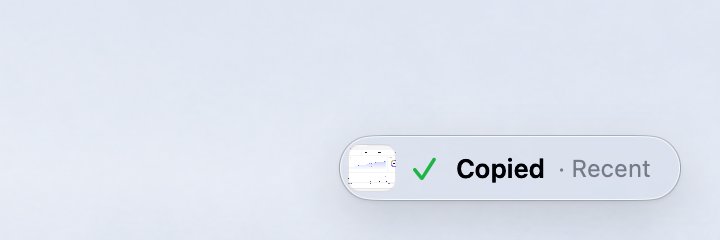
The “Copied” pill and the “Saved” card
When you copy with ⏎, a small “✓ Copied” pill appears in the corner, above the stack. It stays 1.5 seconds, then shrinks and flies up to the notch, which shows where the capture went (Recent Captures). Point at it and it waits, and it opens out into three buttons: Keep for Later (it flies to Kept for Later at once), Edit (opens the Advanced editor) and Pin. A save shows a “Saved” card with the same three buttons instead of a pill; it stays as long as “Keep the Saved notice on screen” says (2, 4, 8 or 15 seconds, or until closed). Neither joins the corner, neither takes the keyboard from the app you are in, and neither shows up in a new capture. Both come from “Show floating notice after capture” in Settings › General; turned off, you get no pill and no card (⇧⏎ still shows the corner).
Glass notices with Undo
One glass notice serves the whole app. A success lasts about 2 seconds, a note 4, one with a button or a warning 6, and a one-time hint 8; the pointer holds it. It sits above the corner, under the strip’s cards, under the menu bar on the notch, or next to the selection of a text capture. Three carry an Undo button:
- “Captures cleared” (Clear all, ⌘⌫, Clear Captures).
- “Capture discarded” (a corner card sent to Recent Captures after an edit).
- “Done · moved to Recent Captures” (a Kept for Later card you copied or saved).
Others tell you something and ask nothing: “No captures”, “You have 30 captures”, “Kept for Later has over 100 captures”, “Couldn’t save” (with a button to Settings), “Couldn’t capture the screen”, “Partly redacted”.
Pin to screen
A pinned capture floats above everything, with no frame, until you close it. Choose Pin to Screen in the island’s “…” menu, Pin on a card or on the Copied pill, or press ⌘P in the Advanced editor. Drag the pin from anywhere to move it. Scroll or pinch to resize it, from 25% to 400%. Press ⌘C to copy it again. Point at it for an Edit button, or press ⌘E, to edit it. Close it with esc, ⌘W or the × that shows when you point at it, and the capture goes back where it came from (a new capture goes to the corner). If you copied it with ⌘C, it counts as used and goes to Recent Captures instead. A pin made with ⌘P in the Advanced editor has no Edit button: the capture stays in the editor. Clicks on the soft shadow around a pin go through to the window below.
Advanced editor
When a capture needs more than a quick mark, open it in the Advanced editor: every tool, plus frames, backgrounds and exports.
Opening it
Click Advanced on the island, press ⌥⇧E to open your last capture, or choose Open from Clipboard in the Frostshot menu for an image from somewhere else. On a card, Edit in Advanced opens it, and so does ⌘E with the keyboard on the corner or on either strip, or ⌥-click in a strip.
Liquid Glass, and graphite
The Advanced editor and the Settings window are real Liquid Glass, tinted neutral so they never look blue. One checkbox, Use Liquid Glass (Settings › General › Interface), switches both at once: off gives a flat graphite editor (a light grey in light mode, a near-black grey in dark) and a normal solid Settings window. Reduce Transparency turns glass off by itself and the checkbox is dimmed with the note “Off while Reduce Transparency is on”. It needs macOS 26. The note under the checkbox reads “Applies to the editor and this Settings window”.
Tools
One key picks a tool, whenever you are not typing text or dragging. The island shows the tool strip; the ⌘K palette lists them too.
| Tool | Key |
|---|---|
| Select and move | V |
| Crop | C |
| Pen | P |
| Arrow | A |
| Line | L |
| Rectangle | R |
| Ellipse | O |
| Highlighter | H |
| Text | T |
| Blur | B |
| Spotlight | F |
| Magnifier | M |
| Counter (numbered steps) | N |
| Pick a color from the capture | I |
| Make the armed tool’s size or strength smaller or larger, in steps of 10% | [ and ] |
The Magnifier drops a lens on any detail; pull its zoom, and the Connector switch draws a ring around the source and a line to the lens. Blur’s lobe has a Find Sensitive Data button that runs the redaction scan.
Shape styles
Rectangles and ellipses can be outlined, tinted or filled. Lines and arrows can be solid or dashed, and arrowheads open, filled or double. Arrows can be curved (drag the hollow handle). The styles sit on the tool’s lobe in the island and in ⌘K (Fill: Outline / Filled / Tint; Line: Solid / Dashed; Arrowhead: Filled / Open / Double); every style stays editable. A full color picker and a stroke slider complete them.
Find anything with ⌘K
Press ⌘K, from anywhere except a text being typed, and type what you want. The palette searches tools, Looks, backgrounds, frame, layout, style, colors, edit, view and export commands, in the language of the app. The highlighted row previews live on your picture after a moment (frame changes only), and closing the palette takes the preview back.
| Key | In the palette |
|---|---|
| ↑ ↓ | Next row that can run |
| Home, End, ⌘↑, ⌘↓ | First or last row |
| ⏎ | Apply the row (a previewed row is kept as one edit) |
| ⌘⏎ | Apply and copy |
| esc | Close the palette and take back the preview |
Rows that cannot run are dimmed and say why (“Pick a background first”, “Select an annotation first”, “Nothing to undo”).
Frame panel, backgrounds and Looks
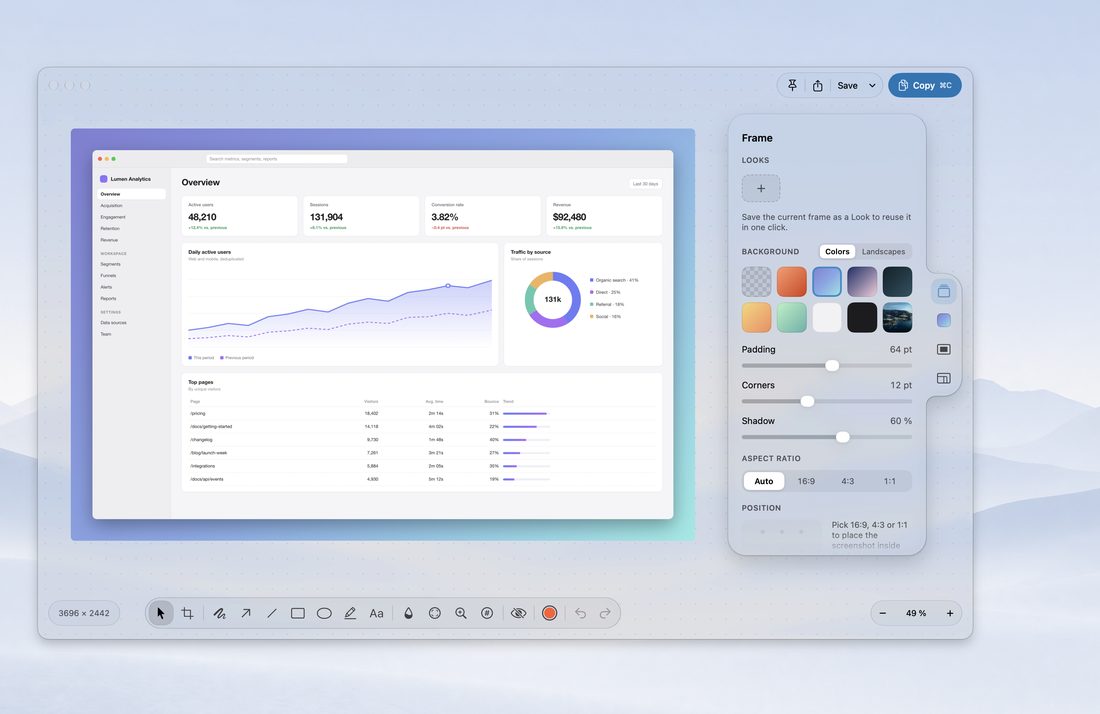
The Frame panel (⌥⌘I) sets the background, padding, corners, shadow, aspect ratio and alignment.
- Backgrounds: None, gradients and solids (Sunset, Sky, Aurora, Ocean, Mango, Mint, Paper, Graphite), your desktop picture, or six landscapes: Glacier Lake, Golden Dunes, Aurora Peaks, Alpine Meadow, Misty Fjord and Ocean Dusk.
- Padding: None, Small, Medium, Large. Corners: Square, Soft, Round. Shadow: None, Soft, Strong. Aspect ratio: Auto, 16:9, 4:3, 1:1. With a fixed ratio, nine positions for the capture.
- Looks save a frame (all six values) so you can apply it in one click. Save Current as Look… (the + tile, or ⌘K) names it; right-click a tile, or Manage Looks…, to Update to Current, Rename… or Delete. You can keep up to 24.
Colors
The editor’s island has the same ring of twelve colors and the full picker (⇧⌘C). I picks a color from the capture.
Copy, save and export
- Copy (⌘C) puts the picture on the clipboard. The editor also copies by itself 250 ms after you pause editing, so what you paste is what you see.
- Save (⌘S) writes a file to your save folder in the format from Settings. “Also copy to clipboard when saving” is off by default.
- Copy as File (⌥⌘C) puts the export on the clipboard as a file, so a paste in Finder, Mail or a chat attaches it.
- Share… opens the macOS share menu with the export file.
- Export… (⇧⌘S, or Save ▾) opens the Export sheet. Drag the size capsule beside the island to take the export out as a file.
- ⌥⏎ Keep for Later keeps the capture, annotations still editable, and closes the window. ⌘W closes the window.
Export sheet: formats, size and presets
Choose a preset and watch the file size before you save. A compare view puts the original and the file side by side at the file’s own pixels (Hold to Compare shows the original; drag to choose where to compare).
| Preset | What it writes |
|---|---|
| Original | The Settings format (PNG or JPEG) at full quality and full size. |
| High | HEIC at 90% (JPEG where this Mac cannot write HEIC), full size. |
| Balanced | JPEG at 80%, up to 2560 px wide. |
| Small for chat/email | JPEG at 70%, at 1×, up to 1600 px wide. |
| Custom | Appears when you change a control. |
Format: PNG and JPEG, plus HEIC and WebP where your Mac can write them. Quality (40% to 100%) for the lossy formats; Optimize PNG for PNG. Resolution: 2× or 1×, and an optional Max width in pixels (it never scales up). A note warns when JPEG will turn rounded corners white. Your last choice is remembered; the buttons are Cancel, Copy as File, Share… and Save…. Settings › Saving offers PNG and JPEG only.
In the Advanced editor, the keyboard
Tab walks the title row (Pin, Share, Save, Save Options, Copy), the redaction bar while you review, the island, the Frame pill and the open panel’s groups, then round again; ⇧Tab goes back. Arrows walk inside a group. esc closes whatever was opened last: the palette, the color picker or ring, the Look name, the eyedropper, the redaction review, a text being typed, a crop in progress, the keyboard in the island or in the title row, and finally the selection. The keys are in the editor tables in Keyboard shortcuts.
Combine captures
Two to eight captures can open in the Advanced editor as one picture, stacked or side by side. You finish it like any capture: mark it up, give it a background or a Look, then copy, save, export, pin it or keep it for later. Combine is the verb on every button and notice; the picture is a combination.
Mark the captures
Marking works the same in the corner, in Kept for Later and in Recent Captures.
- Point at a card and click Combine… in its pill (in Kept for Later, in its “…” menu), or the empty circle at its top-left corner, to mark it and start picking the others. ⇧-clicking a card, or pressing Space on the one with the ring, does the same. Do it again to unmark it. Every other click, ⌘-click included, does what it always did.
- A numbered badge shows the capture’s place in the picture. The empty circle on the other cards marks too.
- With the second mark, a Combine 2 ⌘J capsule appears above the row, with a small × to unmark them all. Click it or press ⌘J. It is not the Clear all button, so a late click can never empty the row.
- Esc works in layers: the first press takes the marks off, the next folds the row, as always.
- After a run of two or more ⇧⏎ captures, the big card offers Combine the 3 (the number is the run’s), in the order you took them.
- The ninth mark shakes and says “Combine up to 8”.
- VoiceOver reads a marked card as “marked, 1 of 2” and adds Mark for Combining and Unmark for Combining to its actions.
What opens
The combination opens in a new editor window with a quick fade. Nothing flies, because the originals do not leave: they stay in the corner or the strip, and none of them says “Editing”. It is a new picture. Each capture comes in with its annotations as they were, so editing an original later does not change it, and the annotations travel with their capture when you resize, flip or reorder.
Limits: 2 to 8 captures and 52 megapixels, the size of eight full MacBook screens at 2×. Past either one nothing opens, a notice says why (“Over 52 megapixels. Try fewer captures.”) and the marks come back so you can fix the choice. The picture takes the scale of the sharpest capture, and the others are enlarged to match, never more than 2×.
The Combine section
It is the first button of the Frame panel, and only a combination has it (⌥⌘I shows or hides the panel). Every change is one undo.
| Control | What it does |
|---|---|
| Direction | Top and bottom, or Side by side. Frostshot remembers your last direction and gap for the next combination: top and bottom with 32 pt the first time. |
| Compare | Only with exactly two captures. See Compare below. |
| Gap | 0 to 96 pt between captures, 32 pt to start (half the default padding). It applies when you let go of the slider. |
| Align | Start, Center (the default) or End, for captures that differ in width, or in height when side by side. |
| Match width | Scales the captures to the same width (Match height when side by side). Off to start, and it keeps your choice when the combination turns. Smaller captures are enlarged up to 2× and bigger ones shrink to no less than half. |
| + Add capture | Opens an area capture whose result joins as the last capture. |
⌘K has the same options in a Combine group, only on a combination: Direction, Gap (None, Small 12 pt, Medium 24 pt, Large 48 pt), Align, Match width or height, Compare, Add Capture and Move Capture Up or Down. If a change would go over the limit, the section says so underneath and leaves the combination as it was.
Reorder, add, drop on an edge
- Reorder. With Select, drag a capture by a spot with no annotation. The others part to open a slot the size of the capture, with a translucent preview of it inside an accent rim, and the rest of the canvas is dimmed a little; on drop it settles with a spring. A click without dragging moves nothing. It is one undo. Hold the capture past the top or bottom edge of a side-by-side combination (or past the left or right edge of a top-and-bottom one) and the whole combination turns, with that capture first or last: the other captures slide into place, a small tag names the new direction, and Direction in the panel changes with it. Let go to keep it, or press esc or move back to cancel. It is one undo, and it is off in Compare.
- From the keyboard, ⌥⌘↑ and ⌥⌘↓ move the capture that holds the selected annotation, or the one under the pointer, one place. Side by side they are Move Capture Left and Right in ⌘K. VoiceOver reads “Capture 2 of 3” and offers Move Up and Move Down (Move Left and Move Right side by side).
- Add. Use + Add capture, or ⇧⏎ in quick edit while a combination is open in the editor (the “…” row then says Add to combination: the capture joins it, nothing is copied, and the next capture opens), or Add Capture in ⌘K. You can also drop onto the canvas a card from the corner, an entry from either strip, or a PNG, JPEG or HEIC from the Finder.
- The edge decides. The outer 20% of each side, at least 44 pt, is an edge, and the one nearest the pointer wins, even outside the picture. Top or bottom puts the capture above or below; left or right puts it beside. With one capture, the edge picks the direction. If the stack already runs the other way, the whole combination turns, in one undo. Inside the picture, the gap under the pointer decides.
- A card from the corner or an entry from a strip that you drop on the canvas stays where it was.
- Dropping onto an editor with a single capture turns it into a combination. It is all or nothing: if an image cannot be read, or the result would pass 8 captures or 52 MP, nothing changes and a notice says why.
Join seamlessly
If two neighboring captures in a top-and-bottom combination show the same strip, because you scrolled a page between them, Frostshot sees it and a glass chip, Join seamlessly, appears over the join. Point at it and the two strips it will dissolve light up. One click: the lower capture drops the rows the upper one already shows (and the sticky header it repeats), the gap closes and a thin line in the accent color glints for 0.4 s. It is one undo, and the joined edge has no gap and no corners: the two captures become one outline. Move one of them away and the join comes undone.
- It is offered only when it is sure: both captures are the same width in pixels and the same scale, they share at least 48 rows with content, 99% or more of those pixels match (blank rows do not count) and there is only one way to line them up. If the content repeats, or there is any doubt, nothing is offered.
- It compares rows exactly, and it works top and bottom only.
- With Reduce Motion, a 0.18 s fade replaces the glint.
Compare: before and after
With exactly two captures, a Compare switch appears under Direction. On, it puts them side by side at the same height and tags them with glass labels: Before on the first and After on the second, centered above each capture on the background (without a background, on the bottom corners of each; in the divider preview and on a pin, on the top corners of the picture), in the app’s language. The labels are drawn on screen and on export, and are not saved in the picture. Show labels (on by default) turns them off. Going to Top and bottom or adding a third capture turns Compare off.
- Preview divider, under the switch, lays the two captures over each other with a divider you drag (from 2% to 98%) to see what changed. It is not part of the document and is never exported. Drawing is off while it shows: the tools dim and say “Drawing is off while the divider shows”.
- ⌘P pins the comparison with a live divider: the first capture on the left, the second on the right, Before and After on their sides. Drag the line or its handle, or press ← → (2% a press, 10% with ⇧). ⌘C copies the side-by-side picture, labels included.
Background, corners and how it ends
- With a background (see Frame panel above), each capture has its own corners and shadow, and the gap is the background showing through. Without one, the gap is transparent in a PNG and white in a JPEG. A spotlight does not dim the gap.
- After an explicit ⌘C or ⌘S, a notice says “Moving originals to Recent in 5” and counts down. If you do nothing, the ones still in the corner and in Kept for Later go to Recent Captures; they are never deleted, and the ones that came from Recent Captures stay. Then “Originals moved to Recent” shows, with Undo. Click Keep them to leave them where they are; clicking the notice does the same. Point at the notice to pause it. It happens once per combination. If you close the editor first, they move right away. With Recent Captures off, nothing moves.
- When you close the editor, the combination goes to Recent Captures like any new capture, flattened, with its annotations still editable. A reopened combination no longer knows its captures: you cannot reorder it or change its direction, and it is no longer a Before and After.
Hide private details
Frostshot can blur emails, phone numbers, card numbers, API keys and IP addresses for you. It runs on your Mac, and it is off until you turn it on.
- Automatically: turn on Settings › General › After capture › Redact sensitive data automatically and every capture comes out with those details blurred. The eye button on the island (quick edit or Advanced) turns it on or off for one capture. ⌫ removes the blur you selected; ⌘Z removes all the blurs at once.
- In the Advanced editor: press ⇧⌘R, choose Redact Sensitive Data… (Edit section of ⌘K), or use Find Sensitive Data on Blur’s lobe, and Frostshot proposes what to hide. Review before anything changes: Tab for the next proposal (⇧Tab back), Space to include or leave out, ← → for Blur or Solid, ⏎ for Redact All, esc to dismiss.
- The Blur tool covers anything else by hand. It blurs the original picture, so it really hides what is under it, other annotations included.
Settings
Choose Settings… (⌘,) in the Frostshot menu in the menu bar. Five tabs, and each fits without scrolling: General, Captures, Saving, Shortcuts, Permissions. The window is Liquid Glass (see above).
General
- Interface: Appearance (Automatic, Light, Dark); Accent color (Frost by default, Orange, Match macOS, Blue, Sky, Purple, Pink, Green); Language / Idioma (English or Español; Frostshot reopens to change it); Use Liquid Glass.
- Startup: Open at login.
- After capture: Play sound on capture; Redact sensitive data automatically (off by default; “Blurs emails, phone numbers, card numbers, keys and IP addresses in every capture. Remove one with ⌫, or all with ⌘Z.”); Show floating notice after capture; Keep the Saved notice on screen (2 s, 4 s, 8 s, 15 s or Until closed; 4 s by default).
Captures
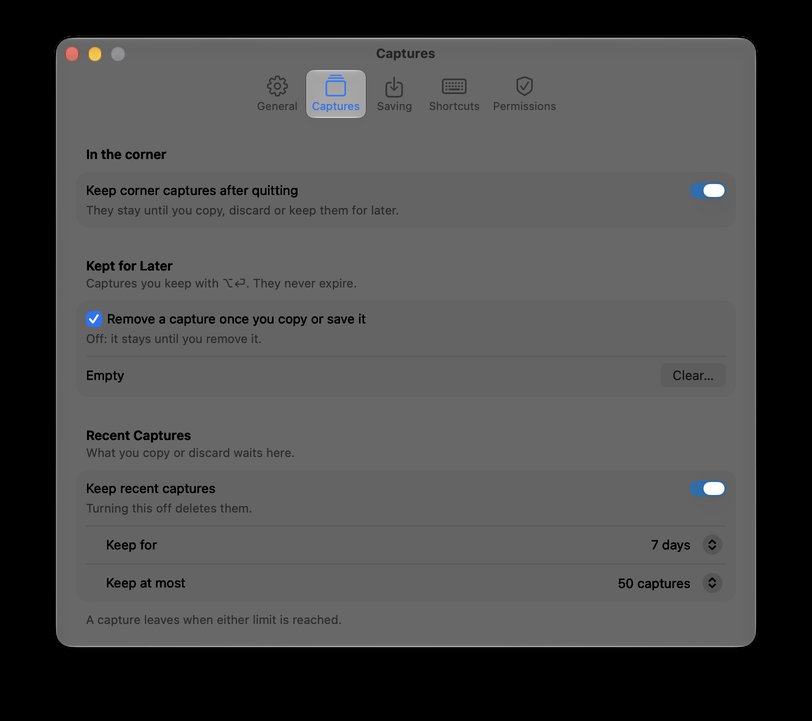
The tab follows a capture’s journey, top to bottom.
| Section | Setting | Default |
|---|---|---|
| In the corner | Keep corner captures after quitting. They stay until you copy, discard or keep them for later. | On |
| Kept for Later (“Captures you keep with ⌥⏎. Open them with ⌥⇧S. They never expire.”) | Remove a capture once you copy or save it. Off: it stays until you remove it. | On |
| Space used (or Empty), with Clear… (asks first). | ||
| Recent Captures (“What you copy or discard waits here.”) | Keep recent captures. Turning this off deletes them (asks first). | On |
| Keep for: 1 day, 7 days, 30 days. | 7 days | |
| Keep at most: 10, 25, 50 or 100 captures. | 50 | |
| Footer: “A capture leaves when either limit is reached.” |
The line under Kept for Later names the keys that open it as you have them now.
Saving
- Saved files: Save folder (Pictures › Frostshot unless you choose another; Choose…); File format (PNG or JPEG; PNG by default); File name (a pattern with {date}, written yyyy-MM-dd, and {time}, written HH.mm.ss, with a preview of the next name; empty gives names like “Frostshot 2026-10-17 at 15.51.42”).
- After saving: Also copy to clipboard when saving (off by default).
- ⏎ only copies. ⌘S, or Save on the island or a card, writes the file. A capture you save from the corner leaves it. If the chosen folder is not available, captures go to ~/Pictures/Frostshot and a note says so.
Shortcuts
Every global shortcut can be changed. Click a field and press the keys you want; esc cancels and ⌫ clears it. A shortcut needs ⌘, ⌥ or ⌃ (function keys work alone), so macOS will take it. Groups: Capture (Area, Window, Fullscreen, Repeat Last Area), Text (Copy Text, Copy Text (Plain)), Editor (Open Advanced Editor), Captures (Show Corner, Show Kept for Later, Show Recent Captures, Clear Captures). Restore Defaults puts them all back (Show Recent Captures and Clear Captures go back to no keys).
If the keys are taken, a message under the field says by what and the shortcut is not assigned: “Already used by Capture Area”, “Used by macOS”, “In use by another app — pick another or try again”, “Used by a menu command”, or “Add ⌘, ⌥ or ⌃”. Frostshot’s own shortcuts pause while Settings is open, so you can record any of them. If a shortcut could not be registered when Frostshot started, its menu shows “Shortcut conflict” and the row in Settings is marked.
Permissions
Frostshot needs only Screen Recording, to capture the screen; the global shortcuts and text recognition need nothing. A red dot in the menu means it is missing: open the Permissions tab (“Open Permissions…”) and click Grant. The Support section has Export Diagnostics…, a text file you can read before you send it to support; Frostshot sends nothing by itself.
Privacy
Everything stays on your Mac. There is no account, no server, and the app has no network access. Captures go to your clipboard or to a folder you choose. Corner, Kept for Later and Recent Captures live in Frostshot’s own folder on your Mac, are left out of Time Machine and iCloud backups, and keep annotations as editable objects. Text recognition, redaction and every export run on your Mac with the system’s own engines. You can stop keeping corner captures after you quit, clear Kept for Later, and turn Recent Captures off (which deletes it), all in Settings › Captures.
Keyboard shortcuts
Every shortcut in one place, grouped by where it works.
Press ? anywhere in Frostshot (quick edit, the editor, the corner, Recent Captures, Kept for Later or a pin) to see every keyboard shortcut. The sheet opens on the place you’re in, and you can search across all of them. It’s also in the menu-bar menu (Keyboard Shortcuts…) and in Help › Keyboard Shortcuts, or choose Keyboard Shortcuts at the end of the … menu in quick edit.
Anywhere on your Mac (global, remappable)
| Action (menu label) | Default | What it does |
|---|---|---|
| Capture Area | ⌥⇧1 | Freezes the screen and starts an area. |
| Capture Window | ⌥⇧2 | Hover a window, click. |
| Capture Fullscreen | ⌥⇧3 | The display under the pointer. |
| Copy Text | ⌥⇧⌘T | Text capture, line breaks and indentation kept. |
| Copy Text (Plain) | ⌥⇧T | Text capture, each paragraph on one line, no indentation. |
| Repeat Last Area | ⌥⇧R | The last rectangle again; a normal Area before the first. |
| Open Advanced Editor | ⌥⇧E | Opens your last capture (copied, saved, pinned or opened); raises it if it is open. |
| Show Corner | ⌥⇧L | Opens the corner row and gives it the keyboard; again, hands it back. |
| Show Kept for Later | ⌥⇧S | Opens the notch strip on Kept for Later; again, closes it. |
| Show Recent Captures | ⌥⇧H | Opens the notch strip on Recent Captures; again, closes it. |
| Clear Captures | Not set | Clears the corner (Undo notice). “No captures” when empty. |
Frostshot menu (menu bar)
Shortcuts show beside the items while the menu is open; remapped ones show as you set them.
| Item | Keys |
|---|---|
| Capture Area, Capture Window, Capture Fullscreen, Copy Text, Copy Text (Plain) | the globals above |
| Repeat Last Area, Open Advanced Editor, Open from Clipboard | ⌥⇧R, ⌥⇧E, none |
| Corner (3) | ⌥⇧L |
| Kept for Later (6)… | ⌥⇧S |
| Recent Captures (12)… | ⌥⇧H |
| Keep for Later | ⌥⏎ |
| Keep All for Later | ⇧⌥⏎ |
| Clear Captures | none unless you record one |
| Clear Kept for Later… / Clear History… | none (both ask first) |
| Settings… | ⌘, |
| Quit Frostshot | ⌘Q |
| Frostshot Help (Help menu, while the editor or Settings is open) | ⌘? |
Corner (n), Kept for Later and Recent Captures show their counts; Corner, Keep for Later and Keep All for Later are dimmed when the corner is empty; Open Advanced Editor is dimmed until you have a last capture; Open from Clipboard is dimmed without an image on the clipboard.
Quick edit, after you select
| Action | Keys |
|---|---|
| Copy and close (Recent Captures) | ⏎ or ⌘C |
| Keep & next: copy, leave in the corner, capture another | ⇧⏎ (or the capture shortcut again) |
| With a combination open in the editor: add the capture to it, copy nothing, capture another | ⇧⏎ |
| Leave in Corner: nothing copied | ⌘⏎ |
| Keep for Later: nothing copied | ⌥⏎ |
| Discard to Recent Captures | esc |
| esc, first: close the full picker, the color ring, the “…” menu, end a text; then take the keyboard off the island | esc |
| Save | ⌘S |
| Copy Text from the selection | ⌘T |
| Undo / Redo | ⌘Z / ⇧⌘Z |
| Delete selected mark (also forward delete) | ⌫ |
| Nudge the selection (one point; ten with ⇧) | ← → ↑ ↓ |
| Move the selection | hold Space and drag |
| Go into the island (⇧Tab back) | Tab |
| Move between island controls (ring beads wrap; on the slider, move the knob) | ← → ↑ ↓ |
| Press the control in focus | Space or ⏎ |
| Finish a text being typed / cancel it | ⏎ or a click outside / esc |
Quick edit of a card
| Where | Keys |
|---|---|
| A corner card: copy it and take it out of the corner | ⏎ |
| A corner card: copy, keep it in the corner, capture another | ⇧⏎ |
| A corner card: keep it in the corner with your marks | ⌘⏎ |
| A corner card: move it to Kept for Later | ⌥⏎ |
| A corner card: to Recent Captures with your edits | esc |
| A Kept for Later card: copy (done, per the checkbox) | ⏎ |
| A Kept for Later card: copy only, no new capture | ⇧⏎ |
| A Kept for Later card: back to Kept for Later with your edits | ⌥⏎, ⌘⏎ or esc |
The corner, with the keyboard
Press ⌥⇧L, then:
| Action | Keys |
|---|---|
| Mark or unmark the card for combining (⇧-click with the pointer) | Space |
| Combine the marked cards (two to eight) | ⌘J |
| Quick Edit | ⏎ |
| Edit in Advanced | ⌘E |
| Copy (closes the row, gives the keyboard back) | ⌘C |
| Save (same) | ⌘S |
| Pin (same) | ⌘P |
| Keep this card for later | ⌥⏎ |
| Keep every card for later (one ⌘Z brings them back) | ⇧⌥⏎ |
| Discard the card to Recent Captures | ⌫ |
| Clear all (no question; Undo notice) | ⌘⌫ |
| Bring back what left last, or the whole Clear all | ⌘Z |
| Take the marks off, then close the row and hand the keyboard back | esc, then esc or ⌥⇧L |
The notch strip, Kept for Later and Recent Captures
Press ⌥⇧S (Kept for Later) or ⌥⇧H (Recent Captures), or open either list from the menu, then:
| Action | Kept for Later | Recent Captures |
|---|---|---|
| Move between cards (← newer, → older; stops at the ends) | ← → | ← → |
| Mark or unmark the card for combining (⇧-click with the pointer) | Space | Space |
| Combine the marked cards (two to eight) | ⌘J | ⌘J |
| The card’s main action | ⏎ opens it in quick edit | ⏎ restores it to the corner |
| Copy | ⌘C (done, per the checkbox) | ⌘C (stays in the list) |
| Copy and keep it here whatever the checkbox says | ⌥⌘C | none |
| Edit in Advanced | ⌘E or ⌥⏎ | ⌘E or ⌥⏎ (stays in the list) |
| Send to the corner | ⌘⏎ | ⏎ already does |
| Restore All (every card that fits) | ⇧⌘⏎ | ⇧⌘⏎ |
| Remove the card | ⌫ sends it to Recent Captures | ⌫ deletes it for good |
| Undo the last removal | ⌘Z (brings it back to Kept for Later) | ⌘Z (while the strip is open; up to 10) |
| Clear the list (asks first) | ⌘⌫ (Clear Kept for Later…) | ⌘⌫ (Clear History…) |
| Close the strip (esc takes the marks off first) | esc | esc |
With the pointer: click a card = ⏎, ⌘-click = copy, ⌥-click = Edit in Advanced; any other modifier is a plain click.
Text capture
| Action | Keys |
|---|---|
| Start, formatted / plain | ⌥⇧⌘T / ⌥⇧T (remappable) |
| Copy when you let go of the mouse | (no key) |
| Leave text mode before releasing | esc |
| From quick edit: copy the selection’s text | ⌘T, or Copy Text in “…” |
A pinned capture
| Action | Keys |
|---|---|
| Copy (counts as used: it goes to Recent Captures when you close it) | ⌘C |
| Edit | ⌘E |
| Close (the capture goes back where it came from; a new capture goes to the corner) | esc or ⌘W |
| Resize (25% to 400%) | scroll or pinch |
| Move the divider of a pinned Before and After (2% a press, 10% with ⇧) | ← → |
Advanced editor: tools
The table is in “Tools” above: V C P A L R O H T B F M N, I for the eyedropper, [ ] for size or strength.
Advanced editor: commands
| Action | Keys |
|---|---|
| Find any tool or setting | ⌘K |
| Copy | ⌘C |
| Copy as File | ⌥⌘C |
| Save | ⌘S |
| Export… | ⇧⌘S |
| Pin to Screen | ⌘P |
| Keep for Later (closes the window) | ⌥⏎ |
| Close window | ⌘W |
| Undo / Redo | ⌘Z / ⇧⌘Z |
| More colors | ⇧⌘C |
| Redact Sensitive Data… | ⇧⌘R |
| Delete selected annotation | ⌫ |
| Close what is open, then deselect | esc |
| Walk through the controls (⇧Tab back) | Tab |
| Show or hide the Frame panel | ⌥⌘I |
| Move a capture of a combination one place (the one with the selected annotation, or under the pointer) | ⌥⌘↑ / ⌥⌘↓ |
| Zoom to fit / Actual size | ⌘0 / ⌘1 |
| Zoom in / out | ⌘+ (or ⌘=) / ⌘− |
Single keys and ⌘ shortcuts do nothing while a text is being typed. In File and View of the menu bar, the same commands show the same keys.
⌘K palette, Export sheet, redaction review
| Where | Keys |
|---|---|
| Palette: next / previous row | ↑ ↓ |
| Palette: first / last row | Home End ⌘↑ ⌘↓ |
| Palette: apply / apply and copy / close | ⏎ / ⌘⏎ / esc |
| Export sheet: move through presets | ↑ ↓ |
| Export sheet: Save… / Cancel | ⏎ / esc |
| Redaction review: next proposal (back) | Tab (⇧Tab) |
| Redaction review: include or leave out | Space |
| Redaction review: Blur or Solid | ← → |
| Redaction review: Redact All / Dismiss | ⏎ / esc |
Settings: recording a shortcut
| Action | Key |
|---|---|
| Cancel recording | esc |
| Clear the shortcut | ⌫ |
| Leave the field | Tab (⇧Tab back) |